
HPC Information and login
Specifications
ASU Research Computing offers a three node Slurm cluster for use by researchers.
hpc1.its.appstate.edu
- 1 x AMD EPYC 7313P 16-Core Processor
- 128GB RAM
- 18TB Storage
- RHEL 9
hpc2.its.appstate.edu
- 2 x AMD EPYC 7543 32-Core Processor (128 threads)
- 1TB RAM
- RHEL 9
hpc3.its.appstate.edu
- 2 x AMD EPYC 7543 32-Core Processor (128 threads)
- 1TB RAM
- RHEL 9
The login node is available at hpc1.its.appstate.edu, it has 18TB of storage for processing. This is not for cold storage or archival. Please make sure you have your backups in order. We offer reasonably priced S3 storage through Wasabi for archiving. Data left on the login node after your jobs are complete may be removed to make room for other users.
The compute partition contains hpc2 and hpc3 which are the compute nodes.
*nix Operating System and Command Line Basics
The HPC cluster here at Appalachian State University run Red Hat Enterprise Linux 9. This is a very common operating system in these environments. Linux is a Unix-like operating system and interaction with the cluster primarily take place through the BASH shell over an SSH connection. Many of the topics covered here will also apply to other Unix and Unix-like operating systems such as FreeBSD, OpenBSD, Solaris and macOS.
Directory Structure
Unlike Windows and other disk operating systems Linux uses a tree structure, directories are mounted under the root (/) and other disks and drives are mounted as directories here as well. These can be visualized as nested folders much like how macOS and Windows do the same thing.
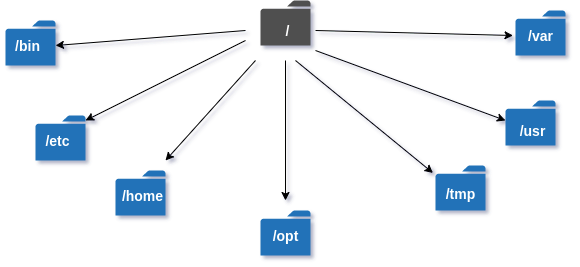
Your "home" directory will be under the /home so for example if your ASU user ID is plinketths the full path of your home directory is /home/faculty/plinketths. The other directories usually store specific types of data, /bin usually contains binary files or programs, /tmp is temporary data and is cleared on reboot, /var is variable data like logs and cache and so on.
On the HPC system you will mostly be working out of your home directory so it's important to know where that is and how to get to it.
Moving Around
Unlike with GUI based interactive paradigms you'll need to know a few text based commands to use the HPC. Whe you first login with a stand alone terminal application or open the VSCode terminal you'll be greeted with a prompt like this:
[plinketths@hpc1 ~]$
The basics here is that the prompt displays your username plinketths at @ the host you're currently logged in to hpc1 followed by your current directory ~. In Unix-like operating system land ~ is shorthand for your home directory.
If you want to move to another directory you can use the cd command for change directory. Another helpful command here is ls which is shorthand for the word list. Example below:
[plinketths@hpc1 ~]$ ls
data
[plinketths@hpc1 ~]$ cd data
[plinketths@hpc1 data]$ ls
hello_world.bsh  slurm-53.out  slurm-54.out
[plinketths@hpc1 data]$
Here the ls command was issued which showed that the home directory contained a sub-directory called data. Then cd was used to move into the data directory. The ls command was then issued once more to show the contents of the data directory. Note that when the directory is changed to data the prompt updated to reflect that.
Permissions 101
Being a multi-user operating system Linux has file and directory permissions that one has to contend with. Read, write and execute permissions exist for every file on the disk. First, let's look at how to view permissions using the ls command.
[plinketths@hpc1 ~]$ ls -l
total 8
-rw-r--r--. 1 plinketths plinketths 24 Apr 18 08:11 data.txt
-rwxr-xr-x. 1 plinketths plinketths 34 Apr 18 08:11 hello_world.bsh
drwxr-xr-x. 2 plinketths plinketths 10 Apr 18 08:13 other_data
The -l option on ls prints the long format of the directory, including the permissions in the first column, the third and forth columns are the user and group who owns the file. Examining the permissions portion on the data.txt it looks like one setting but it's actually three in one.
rw-
r--
r--
The first set is for the owner of the file, the second set is for the group and the last set is referred to as others, users who are not the owner and do not belong to the group. There is one letter for each permission r stands for read, w stands for write and x stands for execute. Looking at this text file one can note that the owner has read and write permission, the group has read-only as does the others.
The hello_world.bsh file is a shell script and has execute permissions for all three sets. As an exercise let's remove the execute permissions and see what happens:
[plinketths@hpc1 ~]$ chmod -x hello_world.bsh
[plinketths@hpc1 ~]$ ls -l hello_world.bsh
-rw-r--r--. 1 plinketths plinketths 34 Apr 18 08:11 hello_world.bsh
Now if the user tries to execute the script an error appears:
[plinketths@hpc1 ~]$ ./hello_world.bsh
-bash: ./hello_world.bsh: Permission denied
This is easily fixed by by adding execute permissions:
[plinketths@hpc1 ~]$ chmod +x hello_world.bsh
[plinketths@hpc1 ~]$ ls -l hello_world.bsh
-rwxr-xr-x. 1 plinketths plinketths 34 Apr 18 08:11 hello_world.bsh
[plinketths@hpc1 ~]$ ./hello_world.bsh
Hello, World!
[plinketths@hpc1 ~]$
The chomod or change file mode command is used to add or remove permissions from a file. The + symbol is used to add permissions and the - symbol is used to remove them. The u', 'g' and 'o' flags are used to specify which set of users the permissions apply to. If these are left off the command it defaults to applying the permissions to the owner, group and others. So to remove read permissions from others issue the following command:
[plinketths@hpc1 ~]$ ls -l data.txt
-rw-r--r--. 1 plinketths plinketths 24 Apr 18 08:11 data.txt
[plinketths@hpc1 ~]$ chmod o-r data.txt
[plinketths@hpc1 ~]$ ls -l data.txt
-rw-r-----. 1 plinketths plinketths 24 Apr 18 08:11 data.txt
[plinketths@hpc1 ~]$
Note the r is now removed from the others column.
Permissions can also be represented in octal format. Each permission has a value assigned to it:
- r (read) 4
- w (write) 2
- x (execute) 1
Permission can be read and set by adding up each number for each permission for data.txt:
- owner has
rw-or 6 - group has 'r--' or 4
- others have
---or 0
So the permissions for this file in octal is 640, each number represents a set of permissions in order for owner, group and others.
chmod can take these octal values as well:
[plinketths@hpc1 ~]$ chmod 755 hello_world.bsh
A final note the other_data file is actually directory, this is noted by the d at the beginning of the permissions column:
[plinketths@hpc1 ~]$ ls -ld other_data/
drwxr-xr-x. 2 plinketths plinketths 10 Apr 18 08:13 other_data/
To set permission for all files inside a directory use the -R option for chmod.
Getting Help
This document is not intended to be comprehensive, merely just to give you a big enough shovel to dig your own hole with. Linux has a few built in help features such as the manual pages. These can be brought up with the man command. For example man ls brings up this page:
LS(1)                                              User Commands                                             LS(1)

NAME
       ls - list directory contents

SYNOPSIS
       ls [OPTION]... [FILE]...

DESCRIPTION
       List  information  about the FILEs (the current directory by default).  Sort entries alphabetically if none
       of -cftuvSUX nor --sort is specified.

       Mandatory arguments to long options are mandatory for short options too.

       -a, --all
              do not ignore entries starting with .

       -A, --almost-all
              do not list implied . and ..

       --author
              with -l, print the author of each file

       -b, --escape
              print C-style escapes for nongraphic characters

       --block-size=SIZE
              with -l, scale sizes by SIZE when printing them; e.g., '--block-size=M'; see SIZE format below

       -B, --ignore-backups
              do not list implied entries ending with ~

       -c     with -lt: sort by, and show, ctime (time of last modification of file status information); with  -l:
              show ctime and sort by name; otherwise: sort by ctime, newest first
...
If you want to fix problems like a real Information Technology professional it's often useful to just put the error into a search engine. Many problems have been fixed by copy and pasting from StackOverflow. Sometimes common problems can be easily rooted out that way.
Finally, if it's not something you can find in the manual pages and searching isn't yielding results you can always open a support ticket with Research Computing. Please do not hesitate to do so as we'd rather solve your issue than have you sit there and spin your wheels for hours or days.
Logging in with SSH
The ASU cluster uses Slurm for scheduling and queuing access to the limited resources of the cluster, mainly CPU and RAM. In order to schedule jobs on the cluster one needs to request an account be created on the login node (hpc1.its.appstate.edu). This account will be simply be your ASU credentials.
There are two basic ways to interact with the login node over SSH. First is via the command line using the ssh and scp commands built into macOS, Linux, BSD and now Windows 10+ operating systems and the second is through the remote facilities Visual Studio Code.
Option 1: Visual Studio Code
- After installing VSCode install the Remote - SSH extension.
- The remote extension will appear in the left hand activity bar, it looks like a computer monitors with two arrows:


- Click that icon and then under the Remote Tunnels drop down right click on SSH.
- From that menu select New Remote.
- After selecting New Remote a prompt will show up in the command box asking for an address, here simply type in
ssh <[email protected]>: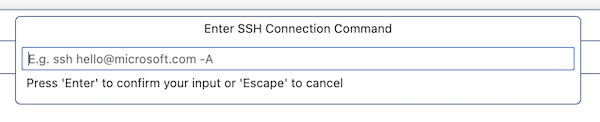

- You will be prompted for your password so enter it, then it will ask which ssh configuration to update: take the default here.
- Now it will prompt you to connect (bottom right corner), connect and VSCode will open a new window prompting you for your password.
- After some initial setup you can click the Explorer button (looks like two sheets of paper, upper left of the screen in the activity bar) and browse the file system on the remote host.
- Click the Open Folder button and in the top command box select the folder called data:
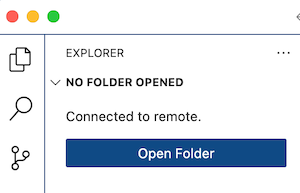

- After opening the data directory you can simply drag and drop files over in the explorer pane, right click on a file to get options for downloading, editing and deleting.
That completes initial setup of the SSH connection.
Option 2: Command line SSH client
The instructions here are less hand holding since the assumption is you're more well versed with basic Linux and Unix type environments.
- Open your terminal of choice.
ssh [email protected]with your ASU ID and password.- Once in
cd ~/dataand edit/upload files there. - The usual text editors and *nix utilites are here. Use
vimornanoto edit your Slurm jobs, evenemacs. scpcan be used to move files back and forth.
Scheduling your first Slurm Job
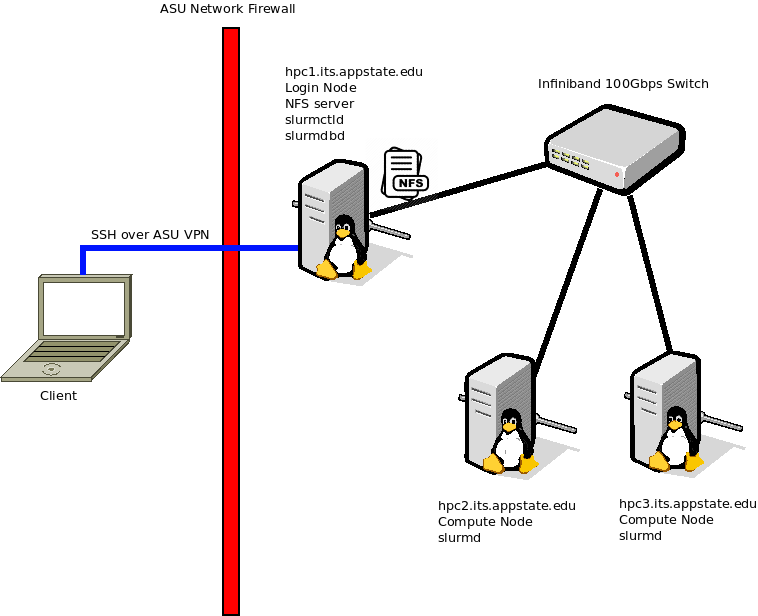
Please utilize the diagram below to help you understand the layout and terminologies used here. HPC1 is our login node and is the primary machine you'll be using, HPC2 and HPC3 are compute only nodes and do not host any files or storage. You will need to use ASU's AnyConnect VPN to login to HPC1 remotely.

There are a few basic commands you'll be using to submit, track and cancel jobs:
- sbatch
- squeue
- scancel
- sinfo
sbatch is the primary way you can a task, for example:
sbatch -N1 -n1 --mem-per-cpu=100MB -t00:05:00 hello_world.bsh
Where -N1 tells sbatch to run on one node, -n1 specifies one CPU per node, --mem-per-cpu requests 100MB of RAM for each CPU requested and -t requests a specific amount of wall time. The hellow_world.bsh script is a simple script that just requests the hostnmae of the node it was run on:
#!/bin/bash
echo "Hello from $(hostname)"
Once the sbatch is submitted you'll be issued a job number:
Submitted batch job 53
You can use this number to check on the status with the scontrol command:
scontrol show job 53
JobId=53 JobName=hello_world.bsh
   UserId=lh59281(1002) GroupId=lh59281(1002) MCS_label=N/A
   Priority=4294901755 Nice=0 Account=(null) QOS=(null)
   JobState=COMPLETED Reason=None Dependency=(null)
   Requeue=1 Restarts=0 BatchFlag=1 Reboot=0 ExitCode=0:0
   RunTime=00:00:00 TimeLimit=00:05:00 TimeMin=N/A
   SubmitTime=2024-04-09T12:08:46 EligibleTime=2024-04-09T12:08:46
   AccrueTime=2024-04-09T12:08:46
   StartTime=2024-04-09T12:08:46 EndTime=2024-04-09T12:08:46 Deadline=N/A
   SuspendTime=None SecsPreSuspend=0 LastSchedEval=2024-04-09T12:08:46 Scheduler=Backfill
   Partition=compute AllocNode:Sid=localhost:872330
   ReqNodeList=(null) ExcNodeList=(null)
   NodeList=hpc3
   BatchHost=hpc3
   NumNodes=1 NumCPUs=128 NumTasks=1 CPUs/Task=1 ReqB:S:C:T=0:0:*:*
   TRES=cpu=128,node=1,billing=128
   Socks/Node=* NtasksPerN:B:S:C=0:0:*:* CoreSpec=*
   MinCPUsNode=1 MinMemoryCPU=100M MinTmpDiskNode=0
   Features=(null) DelayBoot=00:00:00
   OverSubscribe=NO Contiguous=0 Licenses=(null) Network=(null)
   Command=/hpc/lh59281/hello_world.bsh
   WorkDir=/hpc/lh59281
   StdErr=/hpc/lh59281/slurm-53.out
   StdIn=/dev/null
   StdOut=/hpc/lh59281/slurm-53.out
   Power=
Since this demonstration job was relatively short and easy the job completes almost as fast as it was submitted. In this status you can see it's state is finished as well as where the node it ran on and the node it was started from, the BatchHost.
The results will be stored in the data directory in your home, the file name will be slurm-jobnumber.out So, in this example it is slurm-53.out with the following contents:
Hello from hpc3.its.appstate.edu
This tells us that the Slurm scheduler selected hpc3 to run the job (hpc2 was probably busy) from the hostname reported.
You can also put some Slrum specific comments in a script that will pass on to the sbatch command. Please note that command line arguments will supersede any options set in the script. Example:
#!/bin/bash

#SBATCH -N1 -n1 --mem-per-cpu=100MB -t00:05:00

echo "Hello from $(hostname)"
The first line is just like any other shell script, it tells the OS which interpreter to run the script with. This could just as easily be #!/bin/sh.
The next comment has the same options that were in the command line the last time, to run this version simply issue the following command:
sbatch hello_world.bsh
As before the results will be dropped in a file in your data directory. Both of these ways are completely valid.
No comments to display
No comments to display