
Virtual Desktops in Open OnDemand
Open OnDemand makes available two different virtual desktop options. These are accessible via the Interactive Apps menu:

The ASU Cluster Desktop is available for all HPC users, the Computer Science Desktop is a reserved instance for users in the Department of Computer Science. Non-Computer Science users do not have access to the CS partition.
After selecting the ASU Cluster Desktop option you will see this screen:
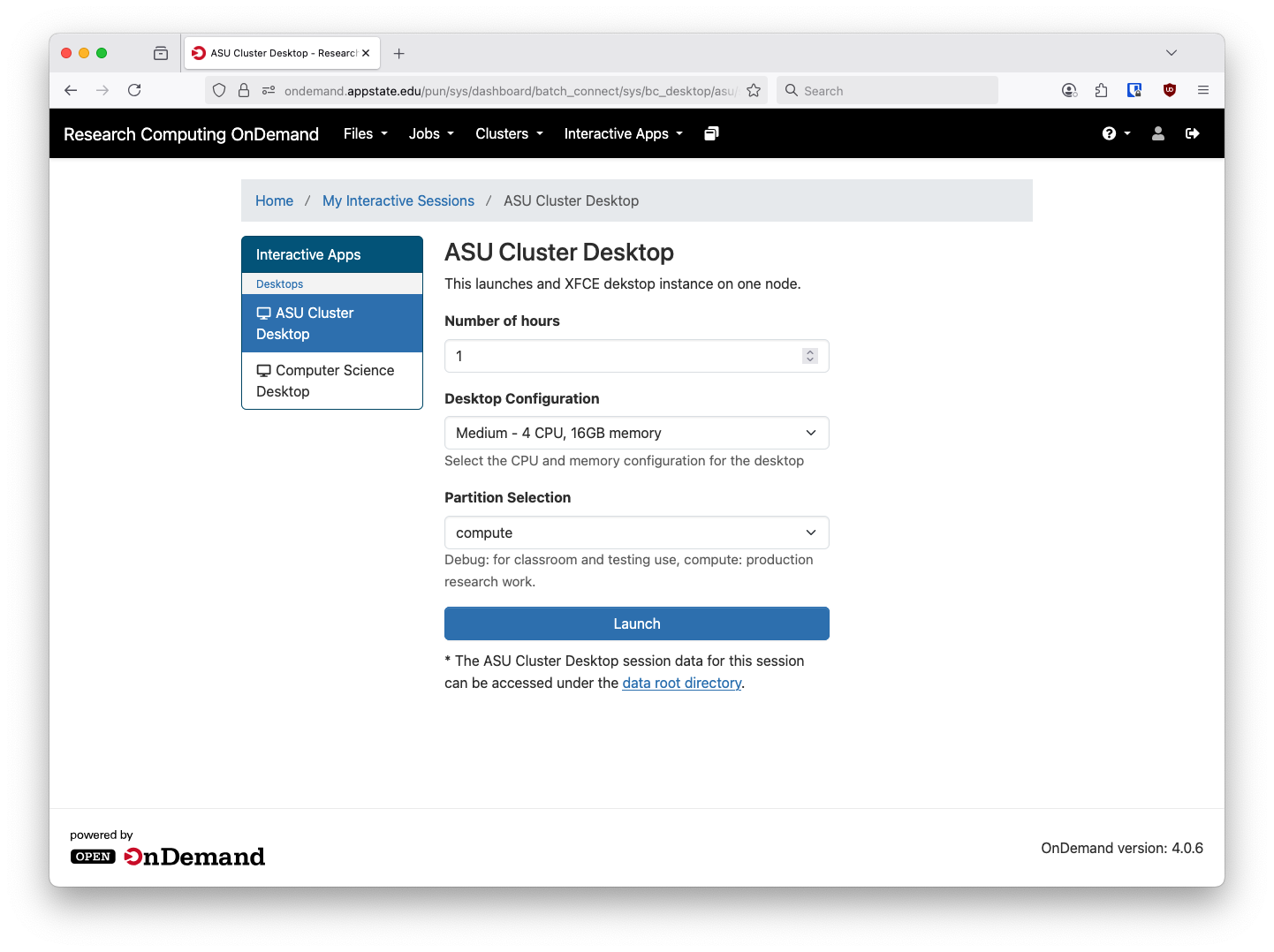
There are a few options here, first is the amount of time you want to reserve. The minimum is one hour and the maximum is 168 hours. If you close your web VNC session your job will keep running and you can reopen it at a later date. There are a few pre-defined sizes available:
| Name | CPU Cores | Memory (GB) |
|
Tiny |
2 | 4 |
|
Small |
4 | 8 |
| Medium | 4 | 16 |
| Large | 8 | 16 |
| X-Large | 16 | 32 |
| 2X-Large | 24 | 64 |
Keep in mind that anything you run inside this Virtual Desktop will also need to fit inside these RAM and CPU requirements. We may add more options in the future to better accommodate different workloads. The Tiny and Small options are mostly for the debug partition and classroom work. The debug nodes are older, slower, and smaller than their compute partition counterparts and we suggest sticking to Medium or smaller on those.
After launching the you'll be taken to the card for the Virtual Desktop. It will take a few minutes to get ready in most cases but after it has launched successfully you'll have a window like below:
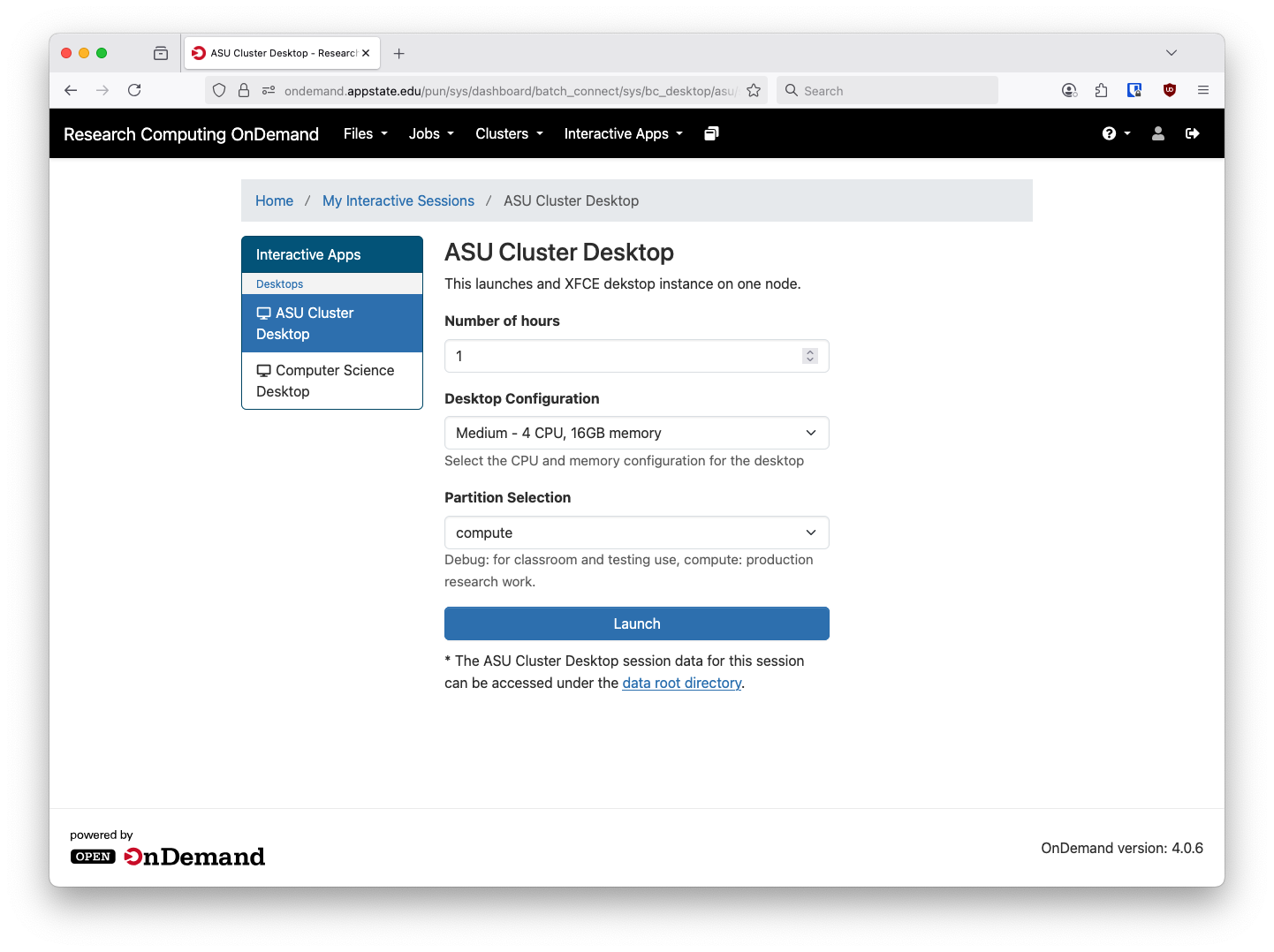
Keep in mind that these Virtual Desktop connections work over noVNC and require a fair amount of bandwidth to operate. Most residential ISPs should be fine but if you're experiencing issues try to move closer to your WiFi router. Public places with busy, congested internet connections (such as a coffee shop first thing in the morning) might not allow for satisfactory results.
Clicking the Launch ASU Cluster Desktop will open the noVNC session in a new browser tab:
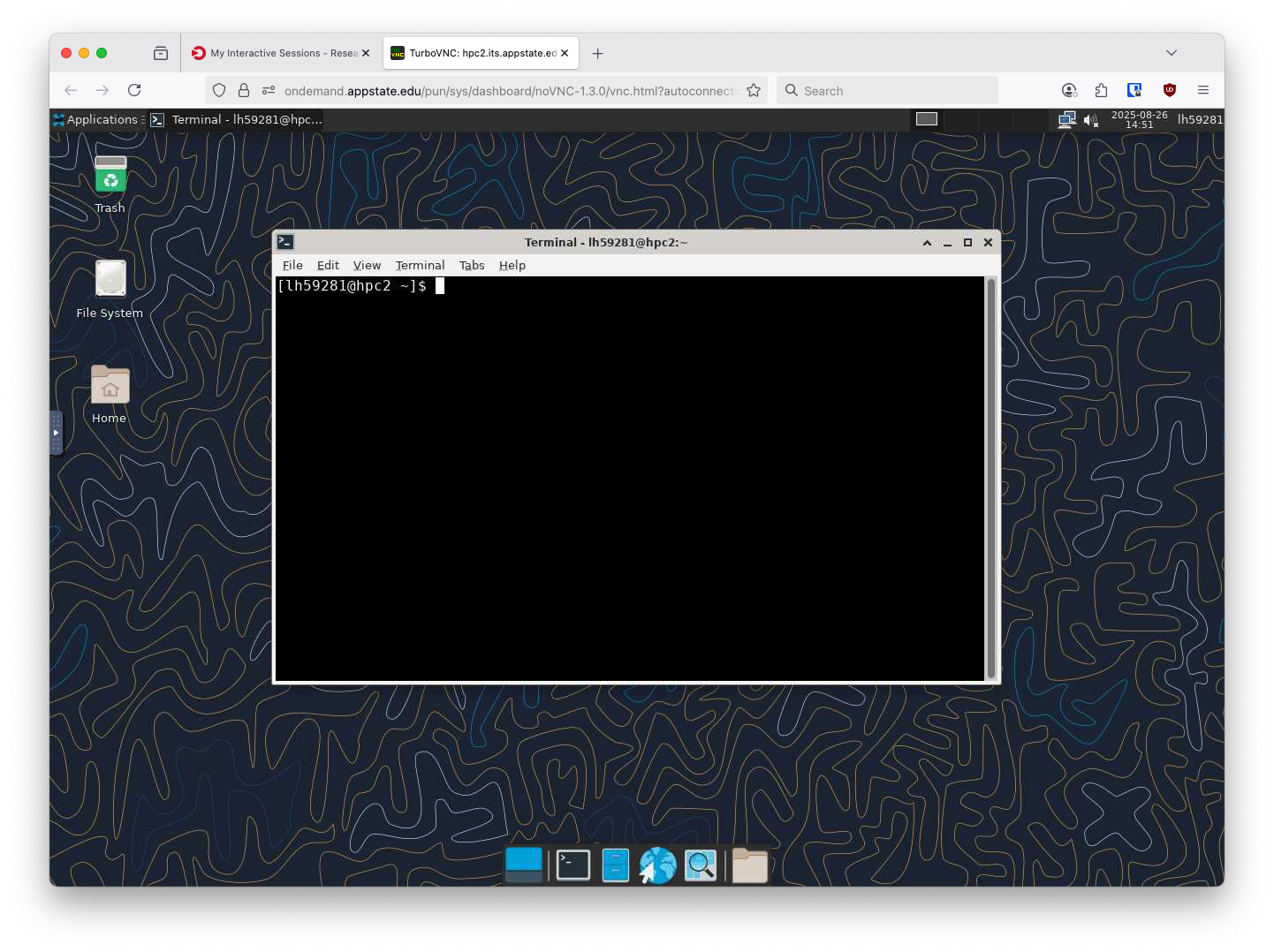
From here you can run any number of applications, including things like Jupyter Lab. If you run applications from the Virtual Desktop you do not need to sumbit it with a Slurm script. The Virtual Desktop is already running via Slurm. You can still load, unload Lmods and run any other program as you normally would on a desktop Linux computer.
Once your session is complete you can close the tab. You can also close the tab, log out, log back in and reopen it as long as you're with in the requested time limit. There is no needed to keep the window open during the duration of your task. It will keep running in the background.