
Jupyter Notebooks in Python Virtual Environments
Jupyter Notebook is a popular data science and analysis application written in Python. It is probably one of our most requested resources here at AppState Research Computing. We now have some self-service ways to run it on our compute nodes. Probably the quickest way is through Virtual Desktop application in Open On Demand. Please click that link and read the documentation on how to access those if you are not already familiar.
After you've requested and launched your Virtual Desktop on the cluster open up the terminal application in XFCE and create a Python virtual environment:
[lh59281@hpc2 ~]$ python -m venv jupyter-astronomy
[lh59281@hpc2 ~]$ source ./jupyter-astronomy/bin/activate
(jupyter-astronomy) [lh59281@hpc2 ~]$
You can name the virtual environment anything you like and in fact have multiple virtual environments for different Jupyter installs. This is very useful for different data analysis tasks. Next install Jupyter Lab with pip [ NOTE: it is inadvisable install things with pip outside of a virtual environment ]:
(jupyter-astronomy) [lh59281@hpc2 ~]$ pip install jupyterlabYou'll see a bunch of text fly past the screen and you may see a warning about pip being outdated. You can ignore that.
Next launch the application:
(jupyter-astronomy) [lh59281@hpc1 ~]$ jupyter labSome more text will stream by and a web browser will open with the Jupyter Lab interface:
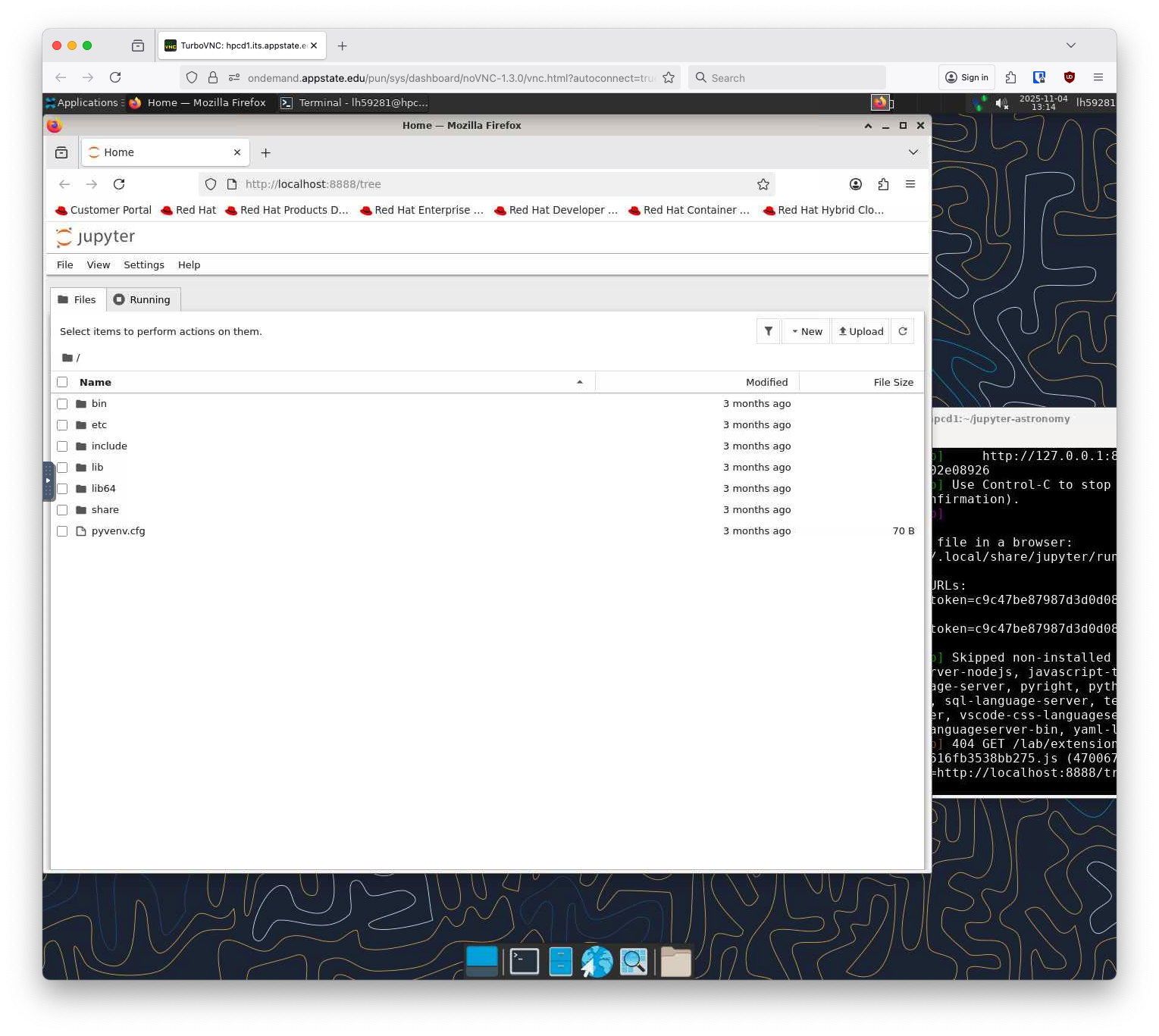
You can now load in Notebook files and run them as you would on your local desktop. You'll either need to upload them via Open OnDemand or SFTP before hand. Git clone from github also works just fine!
You can also install additional required pip packages in your virtual environment if needed. For example the example astronomy notebook requires numpy:
(jupyter-astronomy) [lh59281@hpc2 ~]$ pip install numpyIn addition to that you can load packages from a requirements.txt file if the code you're using ships one:
(jupyter-astronomy) [lh59281@hpc2 AstroInteractives]$ pip install -r requirements.txtWhen you are done with your Jupyter Notebook you can deactivate the Python enivornment in the terminal (close the Jupyter browser first):
(jupyter-astronomy) [lh59281@hpc2 ~]$ deactivate
[lh59281@hpc2 ~]$
The prompt changes back to the standard bash prompt and you can close the window and log out of your Virtual Desktop application.
No comments to display
No comments to display